Classes & Schedule
Creating Classes & Managing the Schedule
This article covers creating classes, viewing the timetable and managing course status.
The class list
After logging in, click Classes in the sidebar:
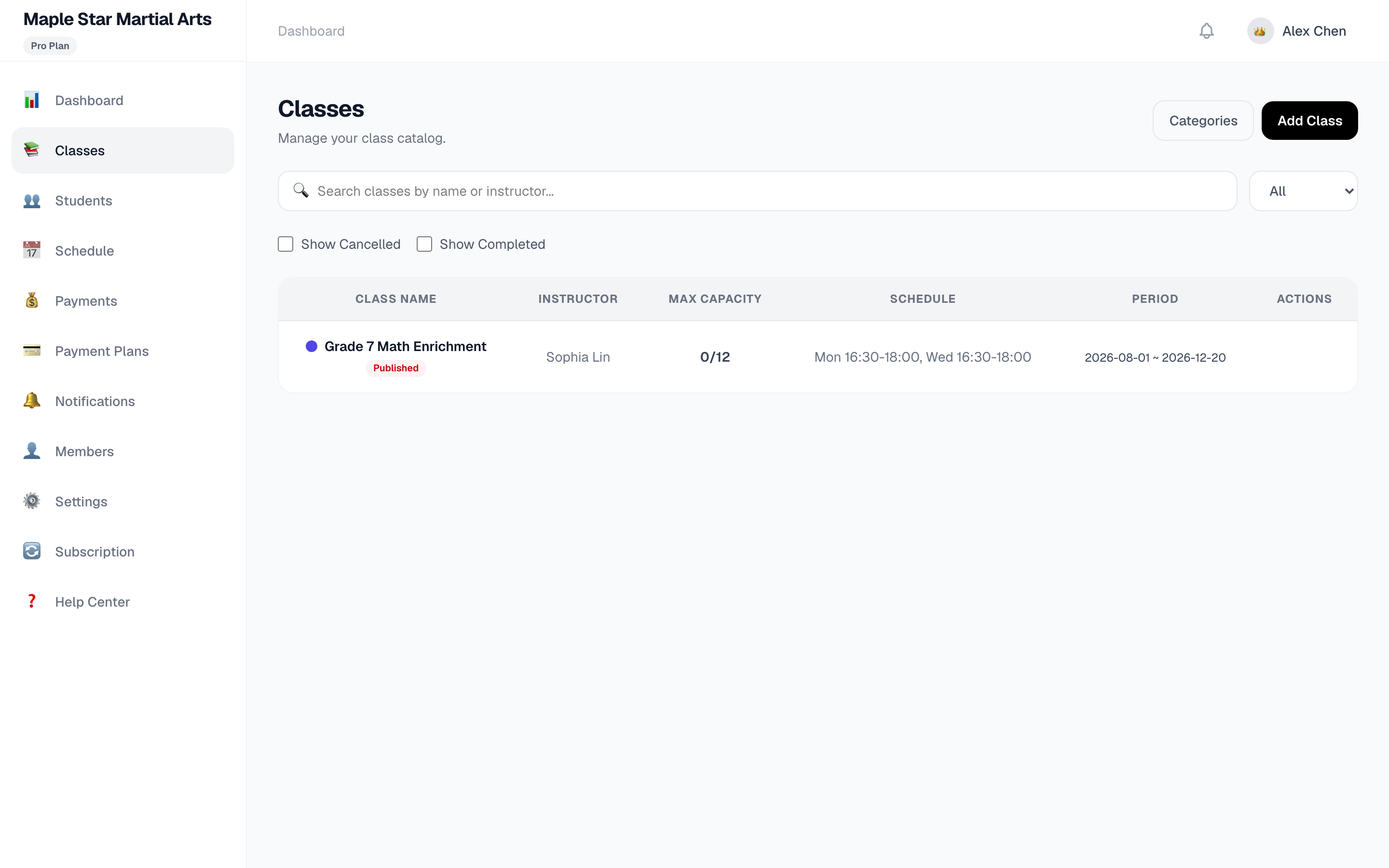
Each class shows:
| Info | Notes |
|---|---|
| Name | Course name + status (draft / published / completed) |
| Instructor | The teaching teacher |
| Capacity | Enrolled / max (e.g. 0/12) |
| Schedule | Weekly times (multiple per week supported, e.g. Mon 4:30–6:00 PM; Wed 4:30–6:00 PM) |
| Period | Start – end dates (e.g. Aug 1 – Dec 20, 2026) |
A search box and status filter sit at the top; checkboxes let you show cancelled/completed classes.
Creating a class
Click Add Class in the top-right corner:
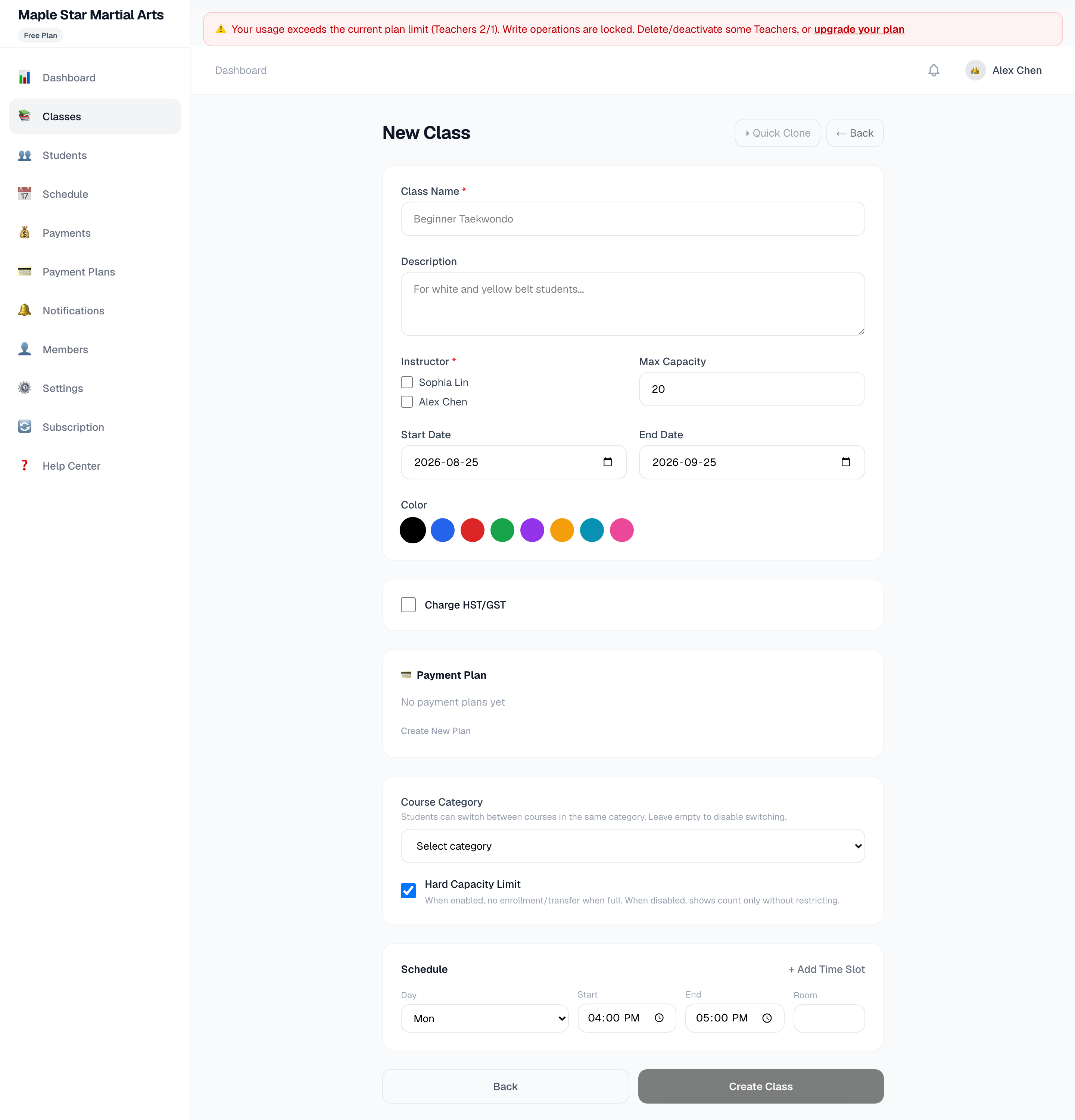
The form is organized into sections:
Basic info: class name (required), description
People & capacity:
- Instructor(s) — multiple allowed, picked from your members
- Max capacity — enrollment stops at the limit
Time & identity:
- Start date, end date (validity period of the course)
- Color tag (to distinguish classes on the timetable)
Tax: check "charge HST/GST" to add tax to payments for this course
Payment plan: link an installment plan (e.g. 4 payments)
Course rules:
- Category (for organization)
- Strict capacity (enforce the max enrollment strictly)
Schedule: add weekly time slots — weekday, start/end time, room. Multiple slots supported (click "+" to add more, e.g. Monday and Wednesday).
💡 Once the schedule is set, the system auto-generates every session within the course period — no manual creation needed. Individual sessions can be cancelled or rescheduled later.
Click Create Class when done.
Viewing the timetable
Click Schedule in the sidebar:
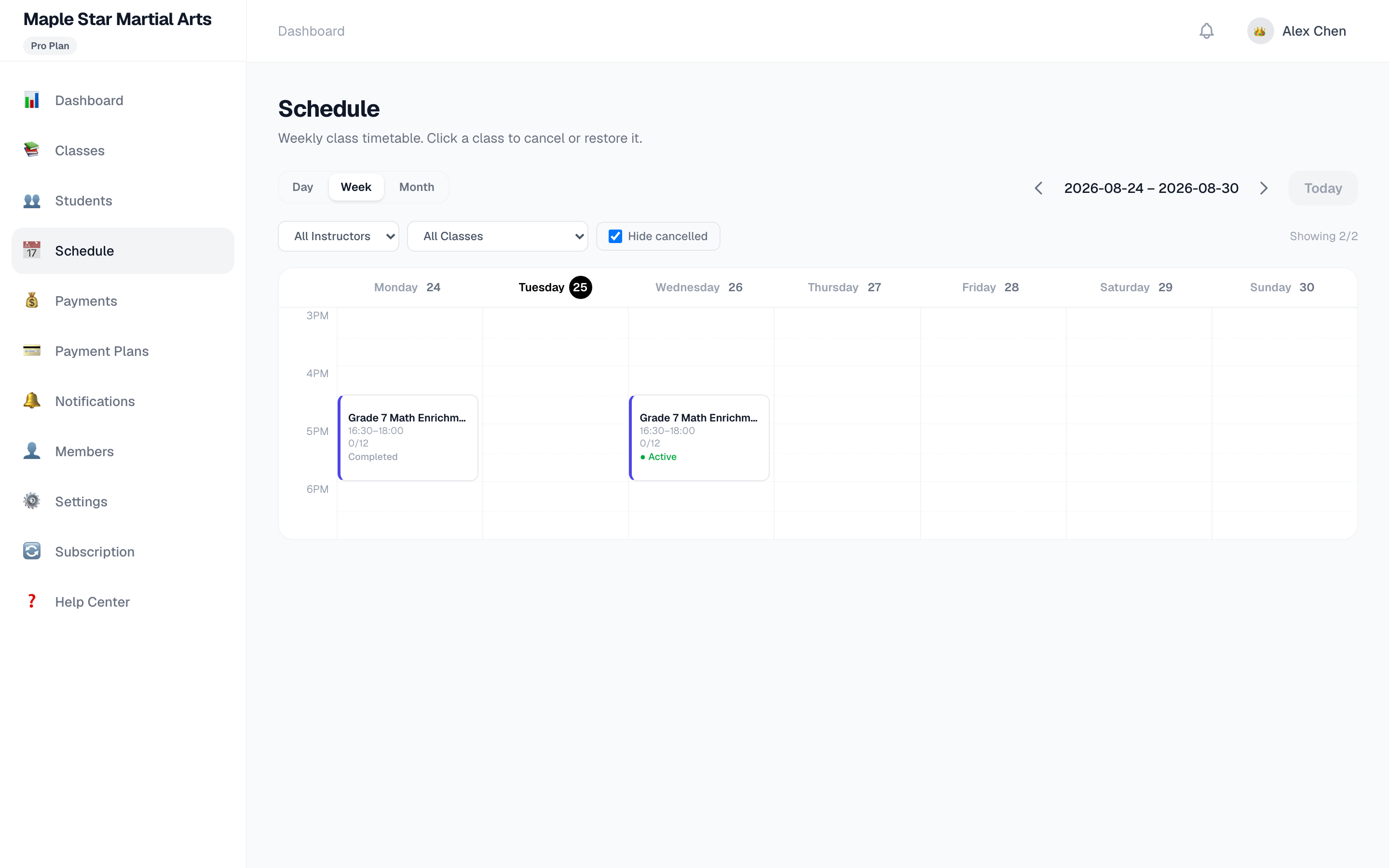
Three views: Day / Week / Month, switchable in the top-right.
Session cards show: class name, time, enrolled/capacity. Past sessions show "ended", upcoming ones show "in progress".
Filters & navigation:
- Filter by instructor or class
- "Hide cancelled" toggle
- Date paging + "Today" shortcut
Managing sessions: click any session to cancel (with a reason) or restore — handy for one-off closures or changes.
💡 To move a single session to another time, cancel the original and use Reschedule to create it at the new time.
Course lifecycle
| Status | Notes |
|---|---|
| Draft | Being set up; preview visible in the timetable, hidden from parents |
| Published | Live — parents can see and enroll |
| Completed | Archived after the course ends; history is kept |
⚠️ Published classes cannot be deleted — only sessions can be cancelled or times adjusted, to keep a clean history.