Members & Permissions
Members & Permissions
All studio people (owner, teachers, students, parents) are managed on the Members page. This article walks through the full invite flow and role permissions, using teacher onboarding as the example.
The members list
After logging in, click Members in the sidebar. You'll see yourself (the owner) in the list:
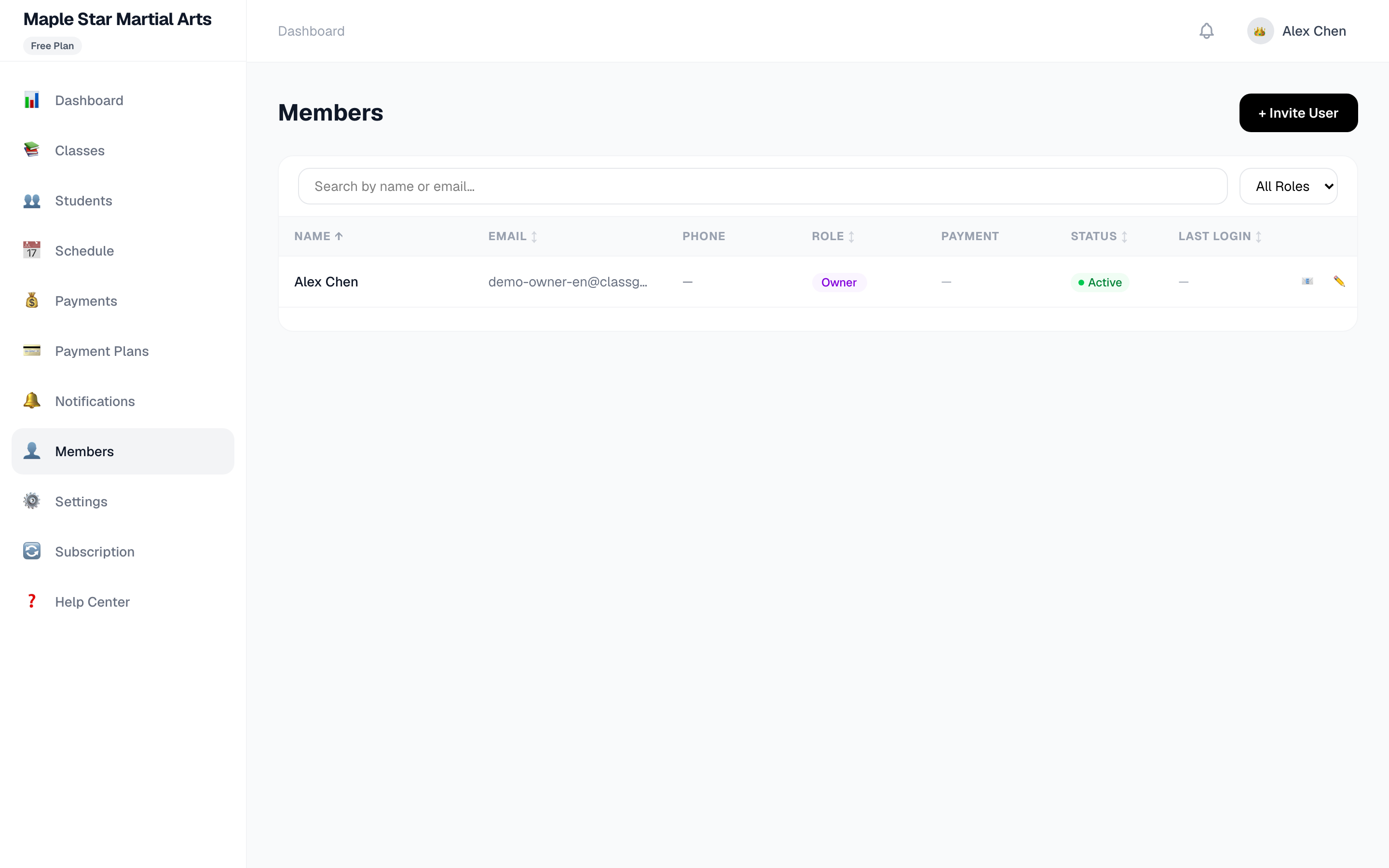
The members page supports:
- Search: by name or email
- Role filter: owner / teacher / student / parent
- Paging: automatic when you have many members
- Status: active / inactive at a glance
Inviting new members
Click the + Invite User button in the top-right corner:
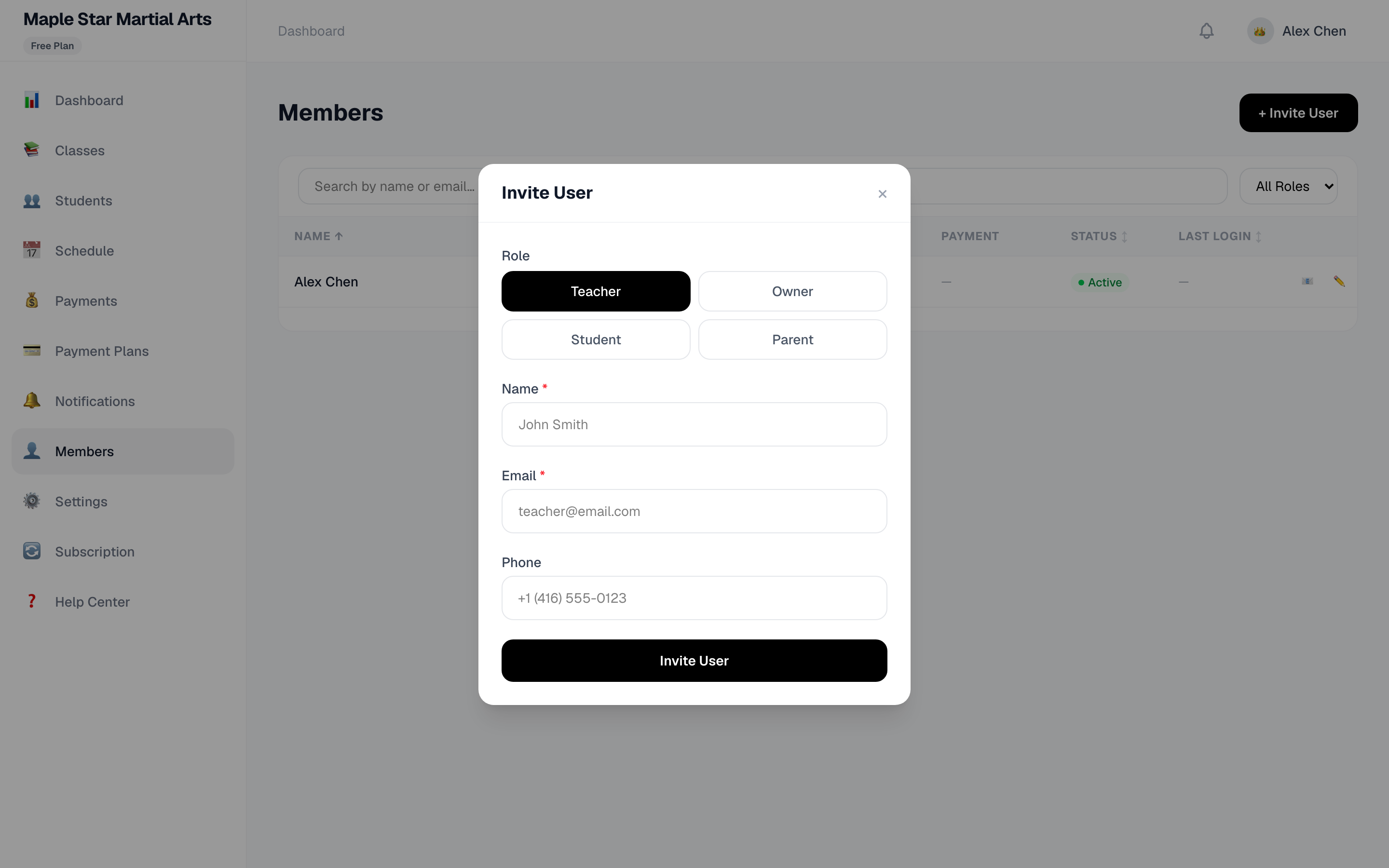
| Field | Notes |
|---|---|
| Role | Choose the role to invite: Teacher, Owner, Student or Parent — each with different permissions |
| Name | The member's real name (required) |
| The member's email (required) — used for login and notifications | |
| Phone | Optional, for contact |
Adding a teacher
Choose role Teacher, enter name and email, and submit. The system:
- Creates the teacher's account automatically
- Emails them a temporary password
- The teacher logs in with email + temporary password — change it after the first login
⚠️ Limit note: The Free plan includes 1 teacher slot (occupied by the studio owner) — on Free you manage everything yourself. Upgrade to Starter or higher before adding your first teacher.
Role permissions
| Role | What they can do |
|---|---|
| Owner | Everything: classes, students, payments, members, settings, subscription |
| Teacher | Teaching features: schedule, student lists, attendance; cannot change settings or billing |
| Parent | View their children's schedule and bills, pay online |
| Student | Adult students: view their own schedule and bills |
💡 Permissions are built-in — a teacher only sees what's relevant to them, no extra configuration needed.
Deactivating a member
In the members list, click the ✏️ Edit button on a member row to open the edit window:
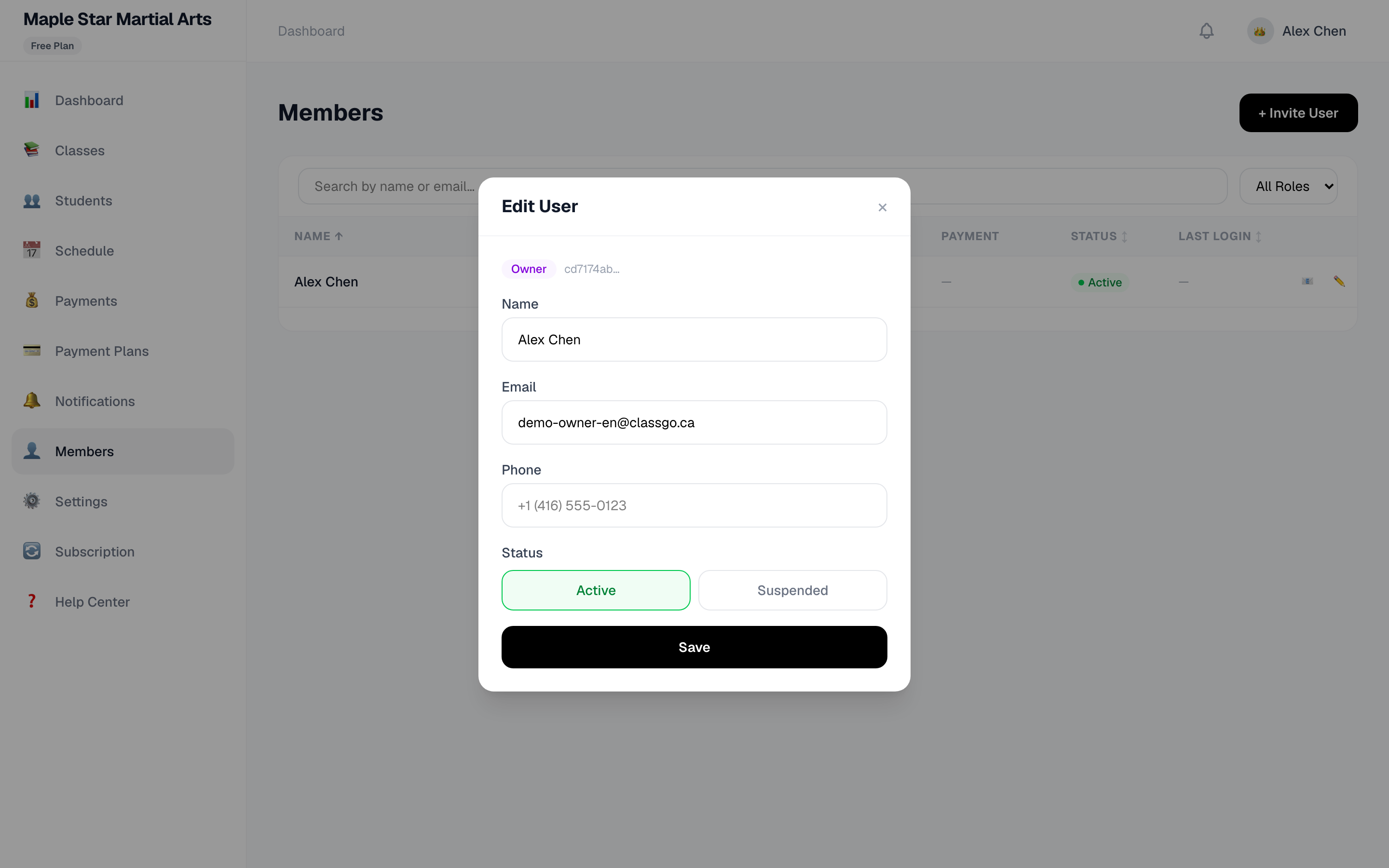
Under Status, switch the option from Active to Suspended and click Save. After deactivation:
- The member can no longer log in
- They no longer count toward plan limits (teacher/student limits count active members)
💡 If your studio is over its plan limit and operations are locked, deactivating some teachers or students is one way to unlock.
⚠️ There is currently no hard delete for member accounts (to avoid accidentally removing linked class/enrollment/payment records). If you truly need one removed, contact support@classgo.ca.